
Stretch
Stretch tool
Brings out the faint signal: generalised hyperbolic stretch (GHS), arcsinh or histogram, with the curve drawn over the histogram.
How to use it
- Open Tools and click the tool: it is added after the selected step.
- Move its settings: the image follows as you move them (Live preview).
- Press Apply to keep the result. Before / after compares at any time.
In GHS, right-click a region of the image: the stretch is centred on its level; keep the button down and drag up for a stronger stretch.
Settings
- Histogram / GHS / Arcsinh
- Histogram: black point, midtones and white point. GHS: generalised hyperbolic stretch. Arcsinh: a gentle stretch that keeps the colours of the stars.
- Auto
- The settings are computed from the image; any manual change takes over.
- Stretch factor
- How strong the stretch is.
- Local intensity (b)
- GHS: how concentrated the contrast is around the symmetry point. Negative values are gentle (−0.8 by default).
- Per channel / Luminance
- Per channel: stronger nebula colours, bright stars turn white. Luminance: the colours are kept.
- Colour, Natural stars
- Arcsinh: how much colour is kept, and how the stars fade to white towards their core.
- Soft star cores
- Arcsinh: melts the sharp edge of a bright star's white disc into its halo. Small stars and the nebula do not change: on the M 42 HDR stack, at 50 %, 0.1 % of the pixels are modified.
- Linked / Unlinked
- Histogram: one curve for the three colours, or one per colour.
When to use it
The turning point of the sequence: before it the image is linear, after it the image is the one you see. The tools of the stretched image come after.
Image
Made for a linear image; it can be used on a stretched one.
Example
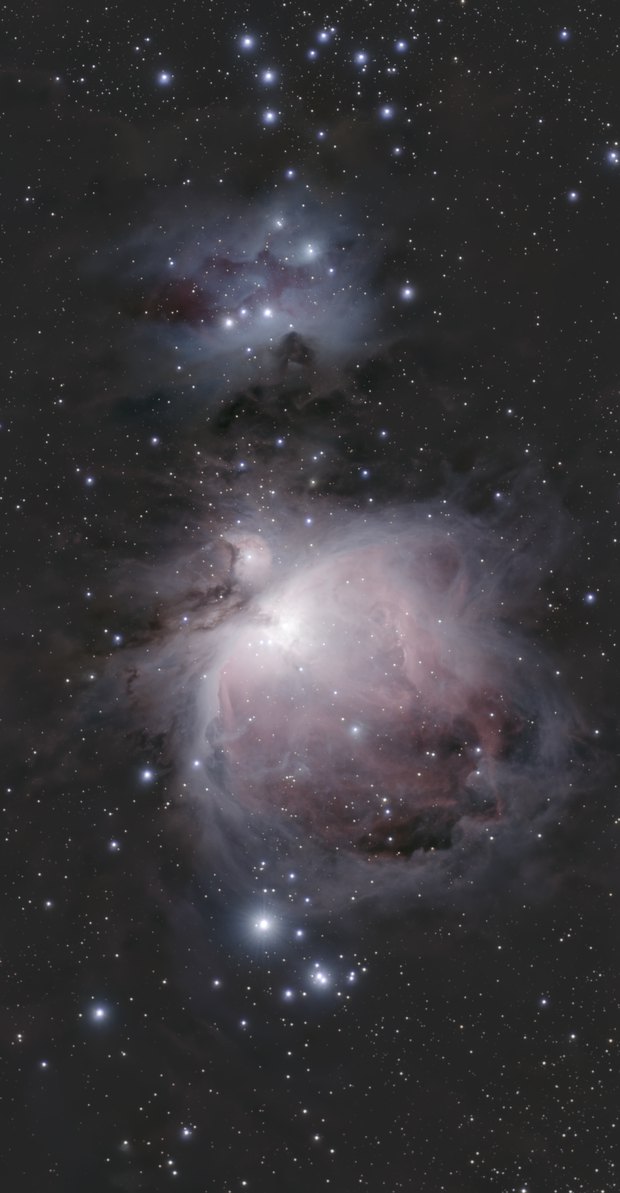
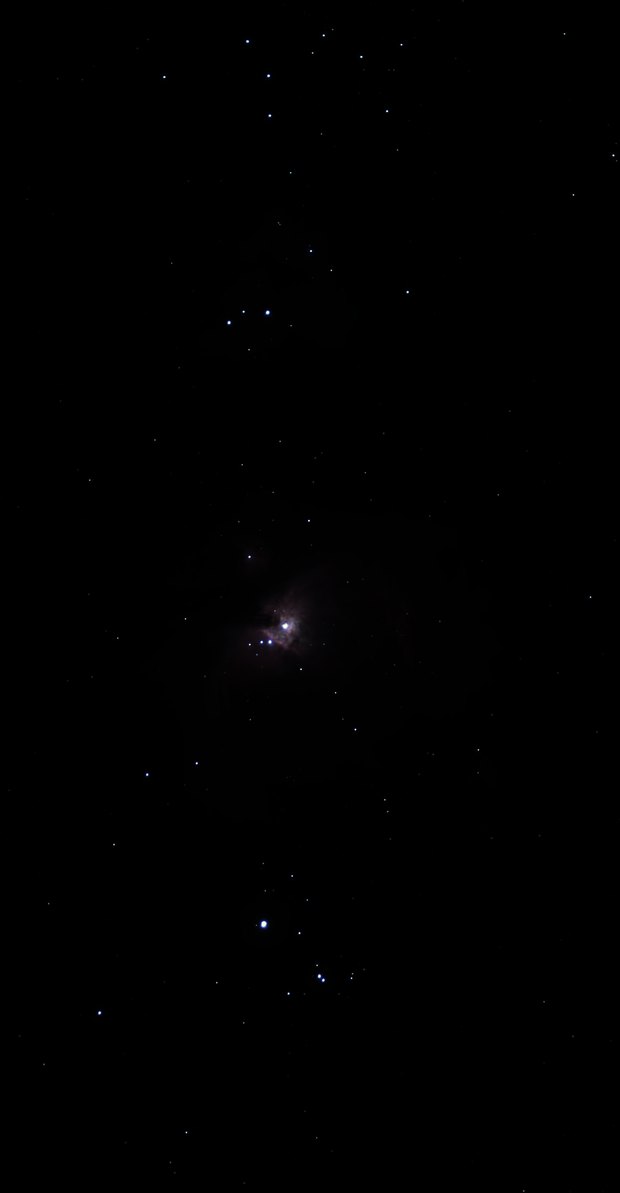 linear datastretched